.png?width=247&height=80&name=Community%20Logo%20(1).png)
How do I invite others to join me on the Community Portal?
Only users who have been granted the role of Community Portal Admin for a profile can invite others to join.
If you are unsure who has this role, contact your community. They can confirm who is designated as a Community Portal Admin and assign the role to additional users if appropriate.
If you are a Community Portal Admin, you can invite others to join by following these steps:
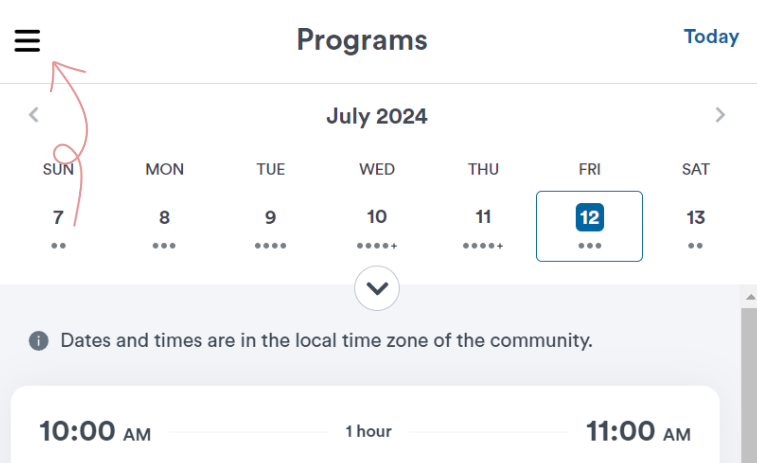
- Click the main menu button in the top left corner of the screen
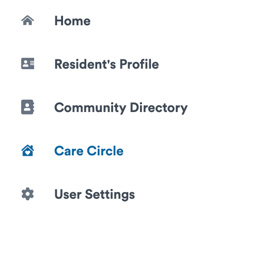
- From the menu, click Care Circle
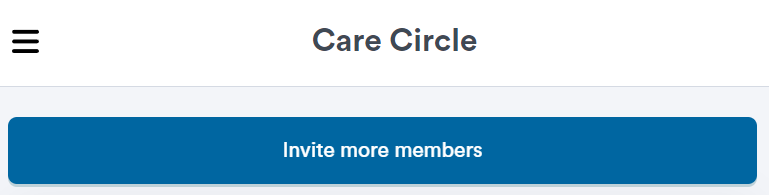
- Click the blue Invite more members button at the top of the page
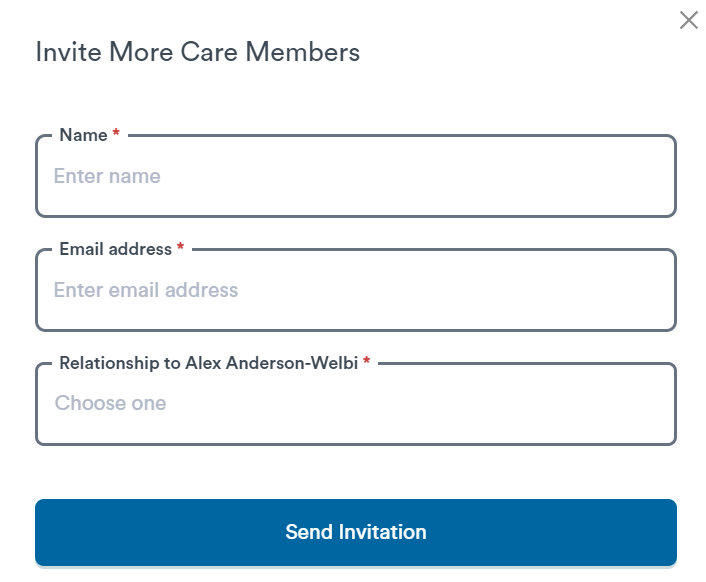
- Enter the individual's name, email address, and relationship to the resident, and click Send invitation.
The individual will receive an email with a link to set up their account. If an email doesn’t appear in their inbox, have them check their junk or spam folder just in case. 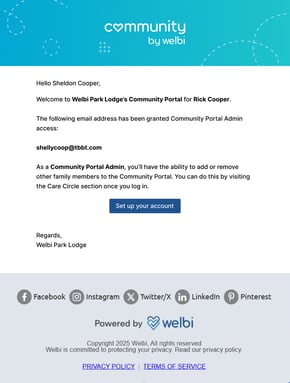
How do I revoke someone's access to the Community Portal?
Users who have been granted the role of Community Portal Admin can remove others from the Care Circle, thereby revoking their access to the Community Portal. Your loved one's community can tell you who has been designated as a Community Portal Admin, and grant this role to additional users if needed.
If you are a Community Portal Admin, you can revoke someone's access by following these steps:
- Click the main menu button in the top left corner of the screen
- From the menu, click Care Circle
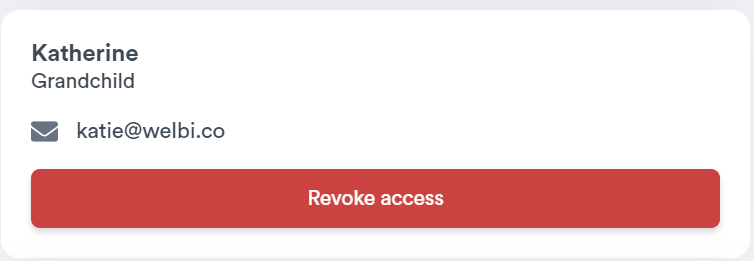
- Find the individual and click the red Revoke access button
They will receive an email letting them know that they no longer have access to the Community Portal.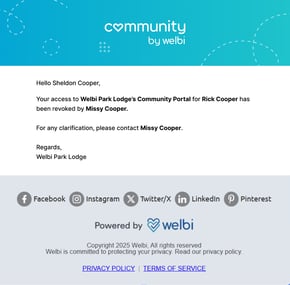
How do I become or add a Community Portal Admin?
To request that a user be granted the role of Community Portal Admin, contact your community's staff as they are the only ones who can grant this access.
I used the wrong email when inviting someone to join the Community Portal. How do I fix this?
If you used the wrong email address when inviting someone to join the Community Portal, you can revoke access for the original email address and send a new invite to the email address they wish to use.
- Click the main menu button in the top left corner of the screen
- From the menu, click Care Circle
- Scroll down until you find the individual, and click the red Revoke access button.
- Send the individual a new invitation by clicking the blue Invite more members button at the top of the Care Circle page
How do I update my user account information?
You can update your name and phone number in the User Settings section of the Community Portal.
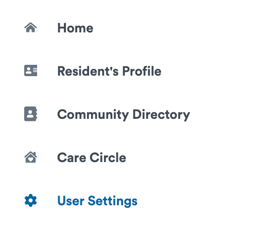
- Click the main menu button in the top left corner of the screen
- From the menu, click User Settings
- Edit your information as needed and click Save Changes
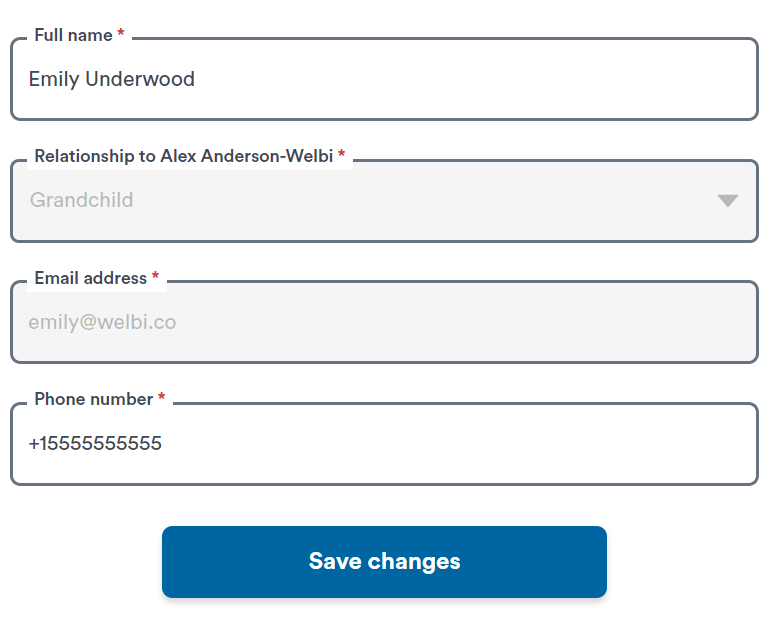
Note that users cannot update the email address associated with their user account for security reasons.
If you require access through a different email address, contact the individual who invited you to the Community Portal and ask them to send a new invite to your preferred email address.
How do I reset my password?
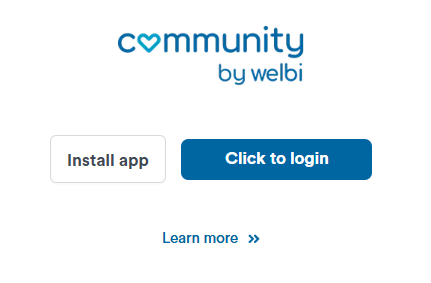
- Visit https://community.welbi.com/ (or open the app on your smartphone if you have it installed)
- Click the Click to login button
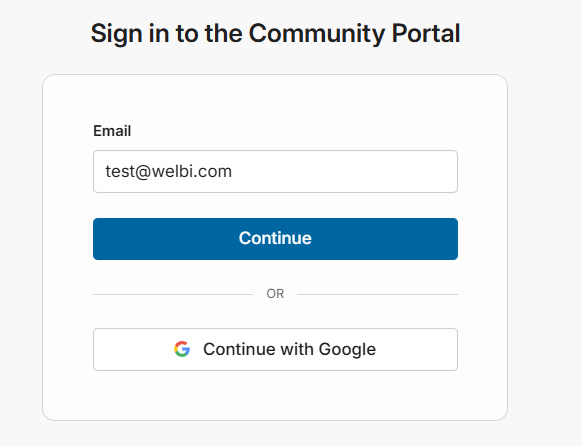
- Enter the email address associated with your user account and click the blue Continue button
- Complete the verification step by checking off the checkbox
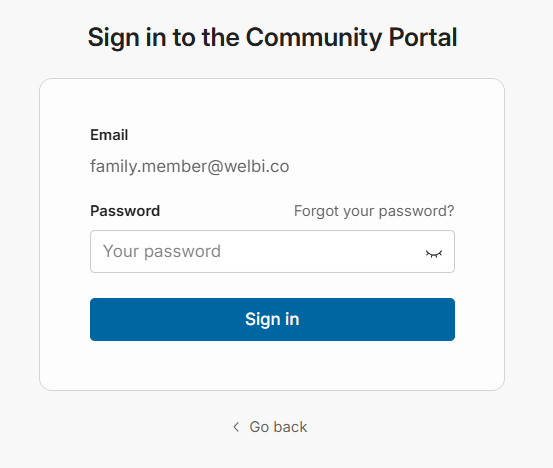
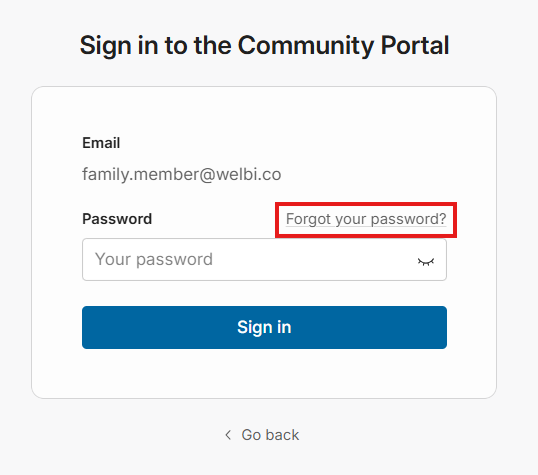
- Click Forgot your password?
- Click the blue Send reset instructions
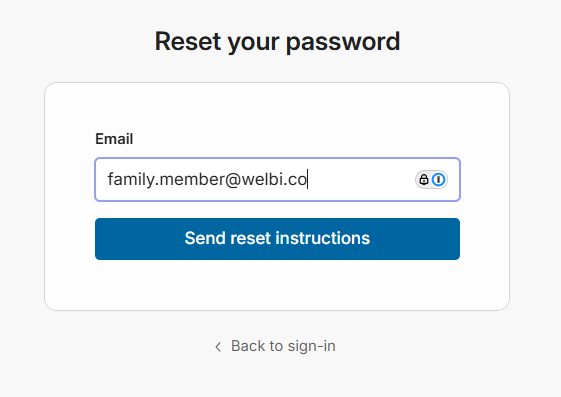
If the email address you entered is associated with an existing Community Portal user account, you'll receive an email with a password reset link.
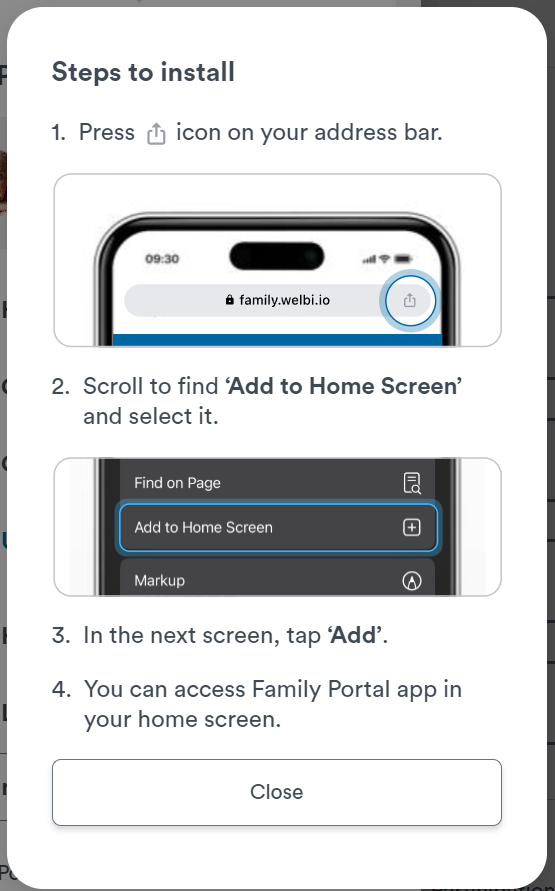
Is there a mobile app for the Community Portal?
- Click the main menu button in the top left corner of the screen
- Click the How to Install button located at the bottom of the menu
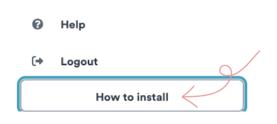
- This will open a pop-up window with instructions to complete the installation
How do I view the calendar of programs and events?
The community's calendar of events is accessed in the Programs tab, which is located in the bottom left corner of the Home page. By default, you will see dates for the current week. Click on a date to see scheduled programs and events, including start and end times, duration, location, and facilitators (i.e., the team member(s) running the program).
You can use the arrows to the left and right of the month header to navigate between weeks.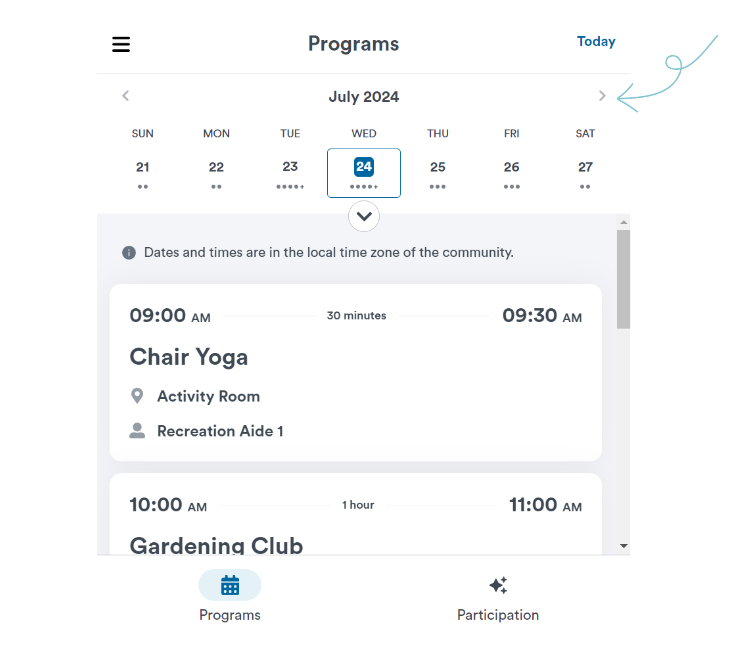
You can also click the downward arrow below the dates to expand your view and see several weeks at a time. 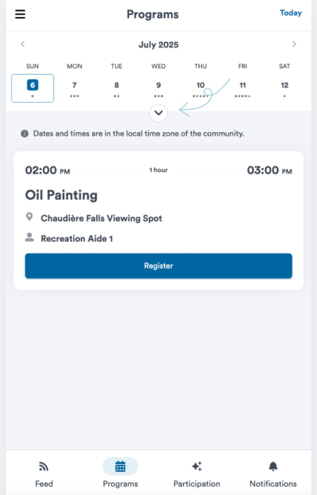
If you have any questions about the information displayed on this page, please contact your loved one's community.
How do I view participation in the Community Portal?
Participation records are available in the Participation tab, located in the bottom right corner of the Home page.
The Participation tab displays activity for the profile you are currently viewing. When staff document participation in a program, an entry will appear on this page.
For each program, you can view:
- The date and time of the program
- The name of the individual who took attendance for the program
- The location of the program
- The program's facilitators (i.e., the individual(s) who ran the program)
- A badge indicating your loved one's level of engagement within the program
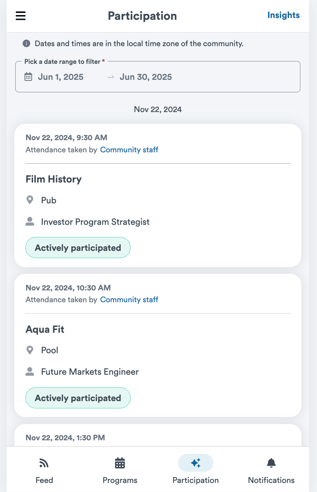
Programs will appear on this page in order from most to least recent.
If you have any questions about the information displayed on this page, please contact community staff.
Where does the information in the Participation tab come from?
Participation information is recorded by community staff using Welbi. Staff document attendance for each program, along with the level of engagement observed during the activity.
This information supports communities in:
- Monitoring engagement
- Identifying changes in participation patterns
- Helping reduce social isolation
- Supporting contact tracing if needed
Once attendance is entered by staff, it becomes visible in the Participation tab of the Community Portal.
Please note that, depending on the community’s workflow and policies, there may be a delay between when a program takes place and when attendance information appears in the Portal.
If you have questions about the information shown in the Participation tab, or about attendance practices at your community, please contact the community directly for more details.
Can I view information for more than one profile in the Community Portal?
Yes. If you have been granted access to more than one profile, you can switch between them within the Community Portal.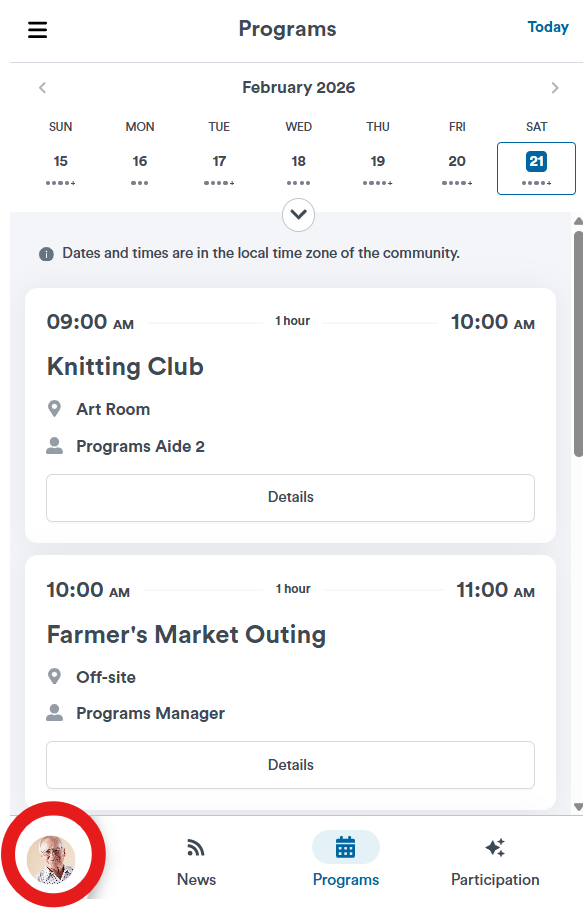
Click on the profile avatar in the bottom left to view a list of all residents you have access to, and select the resident you wish to view in the Community Portal.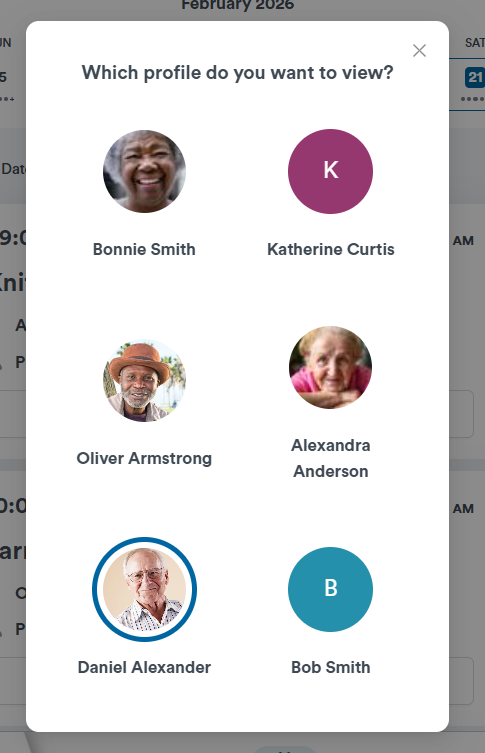
Is the Community Portal secure?
Yes. The Community Portal uses state-of-the-art encryption and follows best practices in data protection to ensure all information remains private and secure. Welbi is SOC2 compliant, a cybersecurity compliance framework that ensures data is stored and processed in a secure manner.
What is Welbi?
Welbi is a recreation and engagement management platform used by community staff to plan calendars, tailor programming to individual interests and needs, maintain participation records, connect individuals with shared interests, and help reduce the risk of social isolation.
The Community Portal is powered by Welbi and allows you to view information related to the profile you have access to.
How do I set up my account?
1. Request an email invitation to join the Community Portal from a staff member at your community or family member with Community Portal Admin access (this is a special level of access that can be granted by staff when sending the initial invite).
2. Click the Set up your account button in the email invitation.
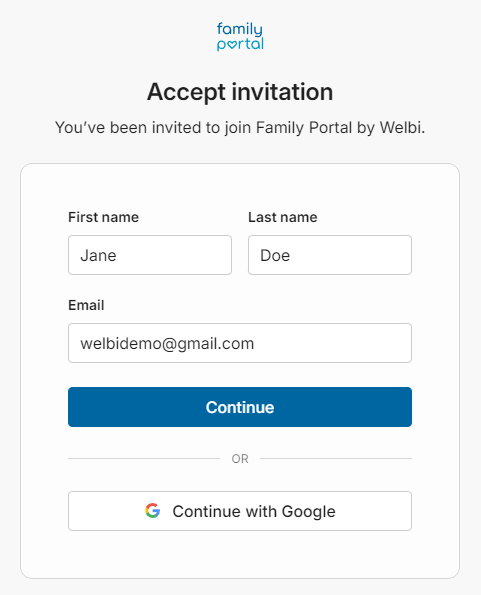
3. Confirm that the email address entered on this screen must exactly match the email address that received the invite, then click 'Continue'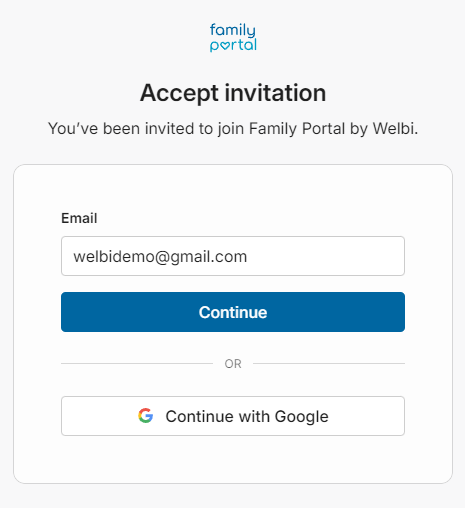
Note: If the email address that received the invite is a Gmail account, you can click 'Continue with Google' to sign in using your Gmail account rather than setting up a separate password.
4. Complete the verification step below by clicking the checkbox.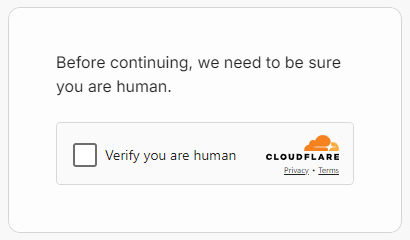
5. Enter your first and last name (your email must match the email address that received the invite) and click Continue.